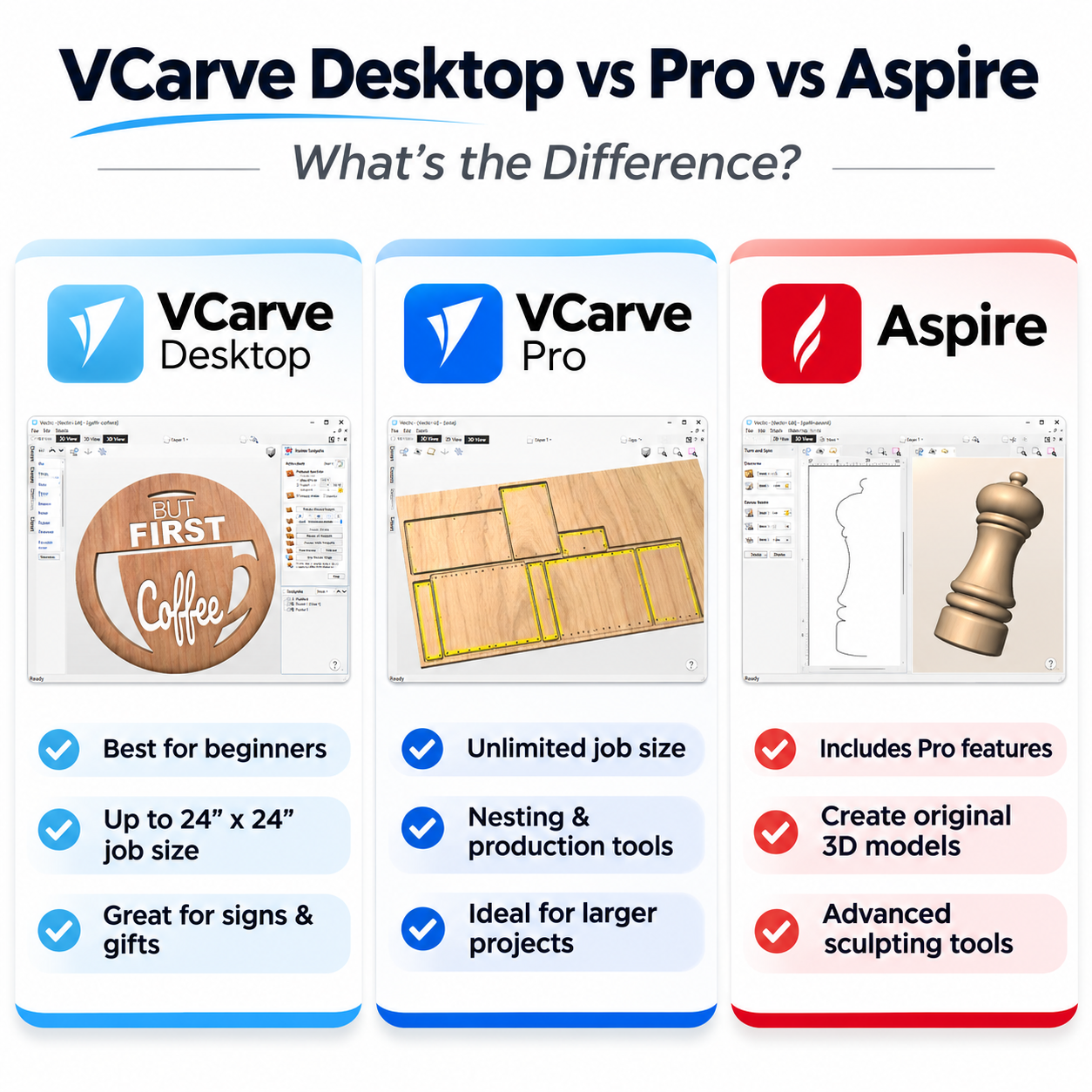
Choosing the Right Vectric Software for Your Shark CNC
When purchasing a CNC machine, one of the most common questions is: What’s the difference between VCarve Desktop, VCarve Pro, and Aspire?
All three software programs are developed by Vectric and allow you to create designs and turn them into projects on your CNC machine.
The biggest differences come down to project size, production features, and the ability to create your own 3D designs.
Here’s a simple breakdown to help you decide which software is right for you.
VCarve Desktop is designed for smaller CNC machines and woodworkers who want to create signs, decorative carvings, and other projects without needing advanced production tools.
Key Features:
Limitations:
Best For:
Example Project: A personalized wooden welcome sign featuring carved lettering and a decorative border.
VCarve Pro includes the design and carving capabilities of Desktop but removes the job-size restriction and adds tools that help streamline production.
Key Features:
Limitations:
Best For:
Example Project: Cutting multiple cabinet components from a sheet of plywood while automatically arranging the pieces to minimize waste.
Aspire includes the capabilities of VCarve Pro and adds powerful tools for creating, editing, and sculpting your own 3D relief designs.
The biggest advantage of Aspire is that you’re no longer limited to working with existing 3D models.
Key Features:
Best For:
Example Project: Designing and carving a custom three-dimensional wildlife scene featuring an eagle, mountains, and detailed natural textures.
| Feature | Desktop | Pro | Aspire |
|---|---|---|---|
| Maximum standard job size | 24″ x 24″ | Unlimited | Unlimited |
| Sign making and lettering | ✓ | ✓ | ✓ |
| V-carving | ✓ | ✓ | ✓ |
| 2D cutting and pocketing | ✓ | ✓ | ✓ |
| Import and carve 3D models | ✓ | ✓ | ✓ |
| Toolpath previews | ✓ | ✓ | ✓ |
| True-shape nesting | — | ✓ | ✓ |
| Toolpath templates | — | ✓ | ✓ |
| Gadget support | — | ✓ | ✓ |
| Create original 3D relief models | — | — | ✓ |
| Advanced 3D sculpting | — | — | ✓ |
Yes! And this is an important distinction.
You do not need Aspire simply because you want to carve a three-dimensional project.
Both VCarve Desktop and VCarve Pro allow you to import and machine existing 3D models.
For example, you can purchase or download a compatible 3D model of a wildlife scene, decorative carving, or American flag and carve it using VCarve.
The difference is:
If you enjoy carving existing designs, VCarve may be all you need. If you want to create your own detailed 3D artwork from scratch, Aspire offers those additional creative tools.
The right choice depends on your CNC machine, the size of your projects, and what you want to create.
Choose VCarve Desktop if:
Choose VCarve Pro if:
Choose Aspire if:
Yes! One of the advantages of Vectric software is that you don’t necessarily have to purchase the most advanced version when you’re first starting out.
Vectric offers upgrade paths between products, generally allowing you to move to a higher-tier product by paying the applicable price difference.
This means you can start with VCarve Desktop, move to Pro when you need larger projects or production features, and eventually upgrade to Aspire if you want advanced 3D modeling capabilities.
Choosing your CNC software doesn’t have to be complicated.
Remember, you don’t need the most expensive software to create impressive CNC projects. The best choice is the software that matches what you want to make.
Whether you’re creating your first wooden sign or producing custom three-dimensional carvings, your Shark CNC and the right Vectric software can help bring your ideas to life.
Ready to start creating?
Explore the Shark CNC lineup and discover the machine that fits your woodworking goals at Next Wave CNC.